

LADYBIRD
You are viewing stock in the "LADYBIRD" category. We currently have 96 books in this category in stock.
96 stock records found. Did you know that you can now search our sold stock? Look for the 'sold stock' filter at the bottom of the filter options.
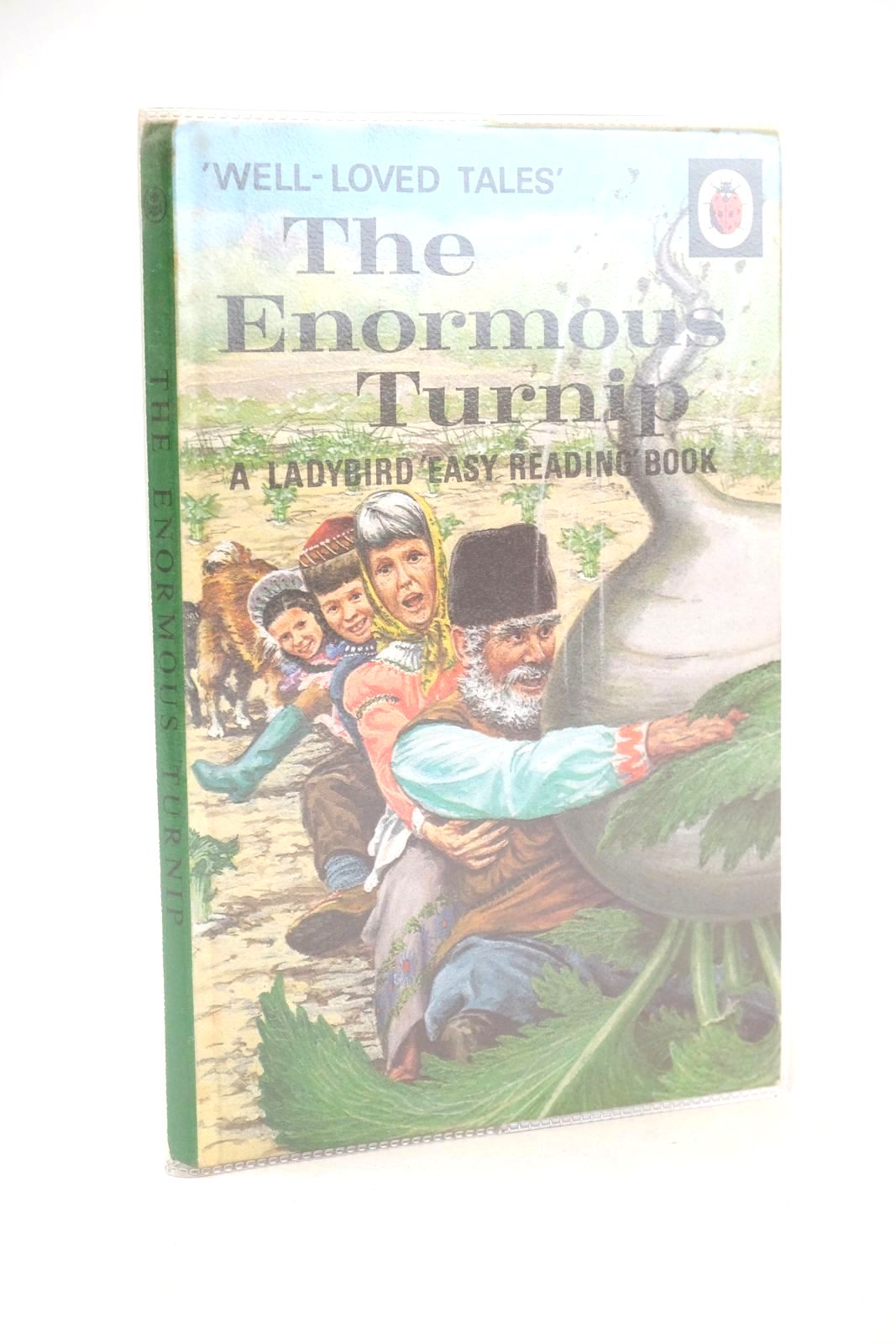
THE ENORMOUS TURNIP
Written by Vera Southgate.
Illustrated by Robert Lumley.
Stock no. 1326354
Published by Wills & Hepworth Ltd..
Circa
1971.
Very good condition.
Ladybird Series 606D. The original 'well-loved tales' classic! Green pictorial paper boards. Colour illustrations. ISBN: 0721402674. Spine slightly bumped, a few light foxspots to front cover. Publisher's revised price label to rear cover (15p). Booksellers sticker to front pastedown. Foxspots to textblock else contents clean. Last title on rear cover is this one.
- Categorised in:
- CHILDRENS
- LADYBIRD
- LADYBIRD 606D WELL-LOVED TALES
- FAIRY TALES
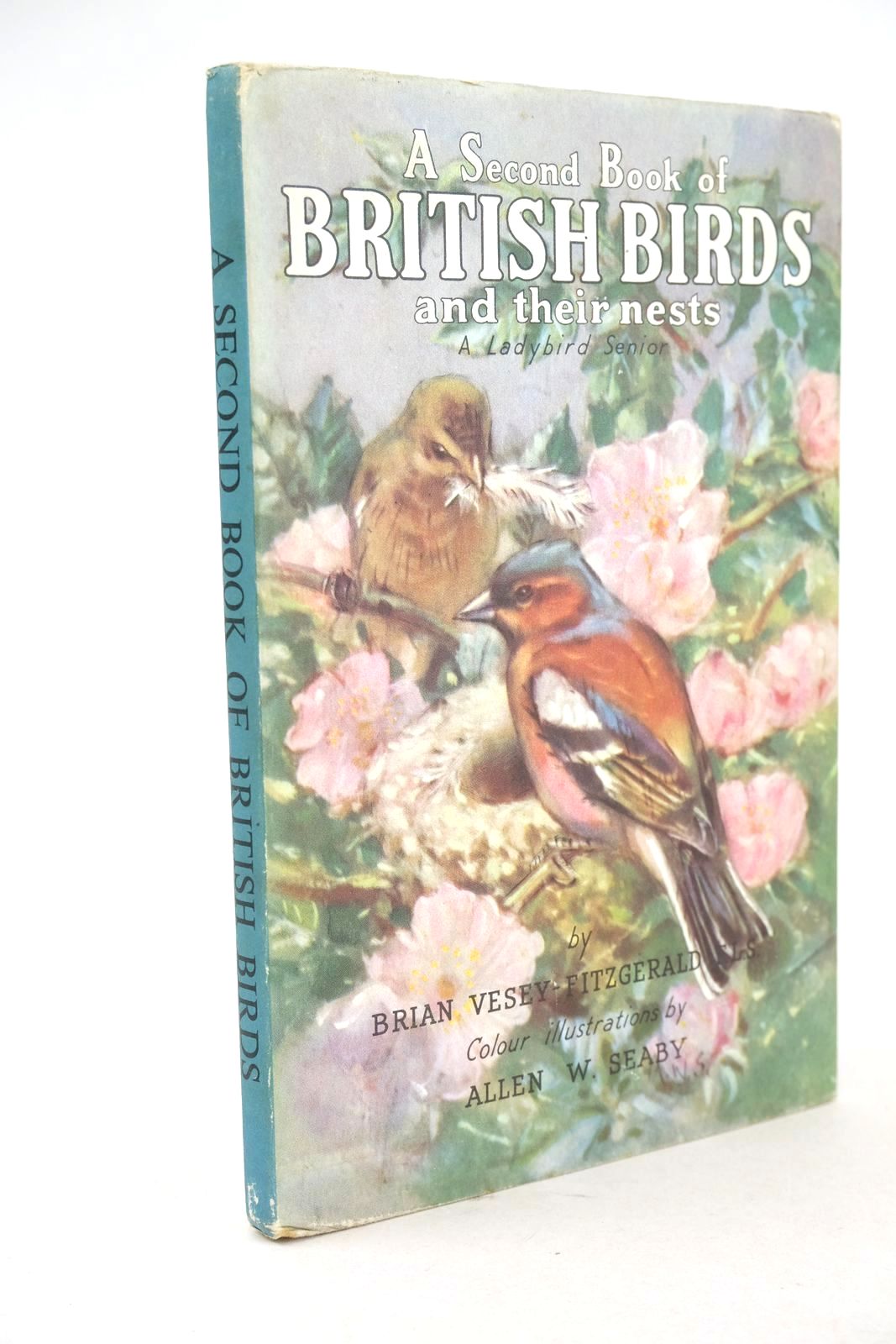
A SECOND BOOK OF BRITISH BIRDS AND THEIR NESTS
Written by Brian Vesey-Fitzgerald.
Illustrated by Allen W. Seaby.
Stock no. 1325754
Published by Wills & Hepworth Ltd..
Circa
1958.
Very good condition in a very good dustwrapper.
Ladybird Series 536. Buff boards with colour vignette and titles. Colour illustrations. Spine bumped. A few light marks to covers. Top edge of textblock is slightly dusty/foxed else contents fine. Dustwrapper is lightly edge rubbed, slightly marked to rear panel and front flap, 1.55 written in black biro to top margin of front flap.
- Categorised in:
- CHILDRENS
- LADYBIRD
- LADYBIRD 536 NATURE
- NATURE (CHILDRENS)
- ORNITHOLOGY
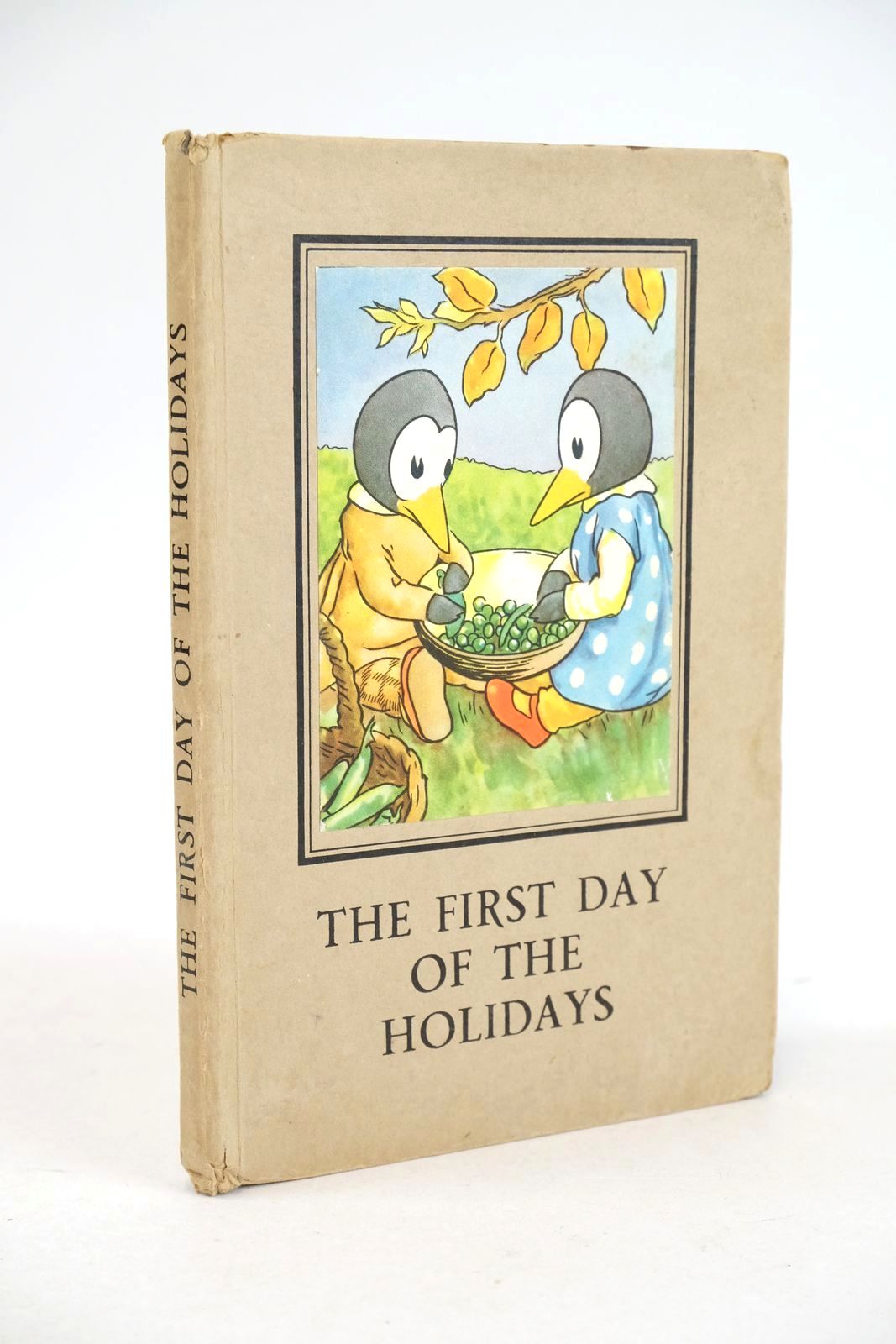
THE FIRST DAY OF THE HOLIDAYS
Written by A.J. Macgregor; W. Perring.
Illustrated by A.J. Macgregor.
Stock no. 1325480
Published by Wills & Hepworth Ltd..
Circa
1957.
Good condition.
Ladybird series 401. Buff boards with square pictorial onlay to front and titles. Illustration to front is of Pen and Gwen shelling peas. Revised verses by Perring. Spine and corners bumped and worn, evidence of removal of a small label from rear cover. Inscription in ink to front free-endpaper (dated 1957). Contents clean.
- Categorised in:
- CHILDRENS
- LADYBIRD
- LADYBIRD 401 RHYMING STORIES
- PENGUINS
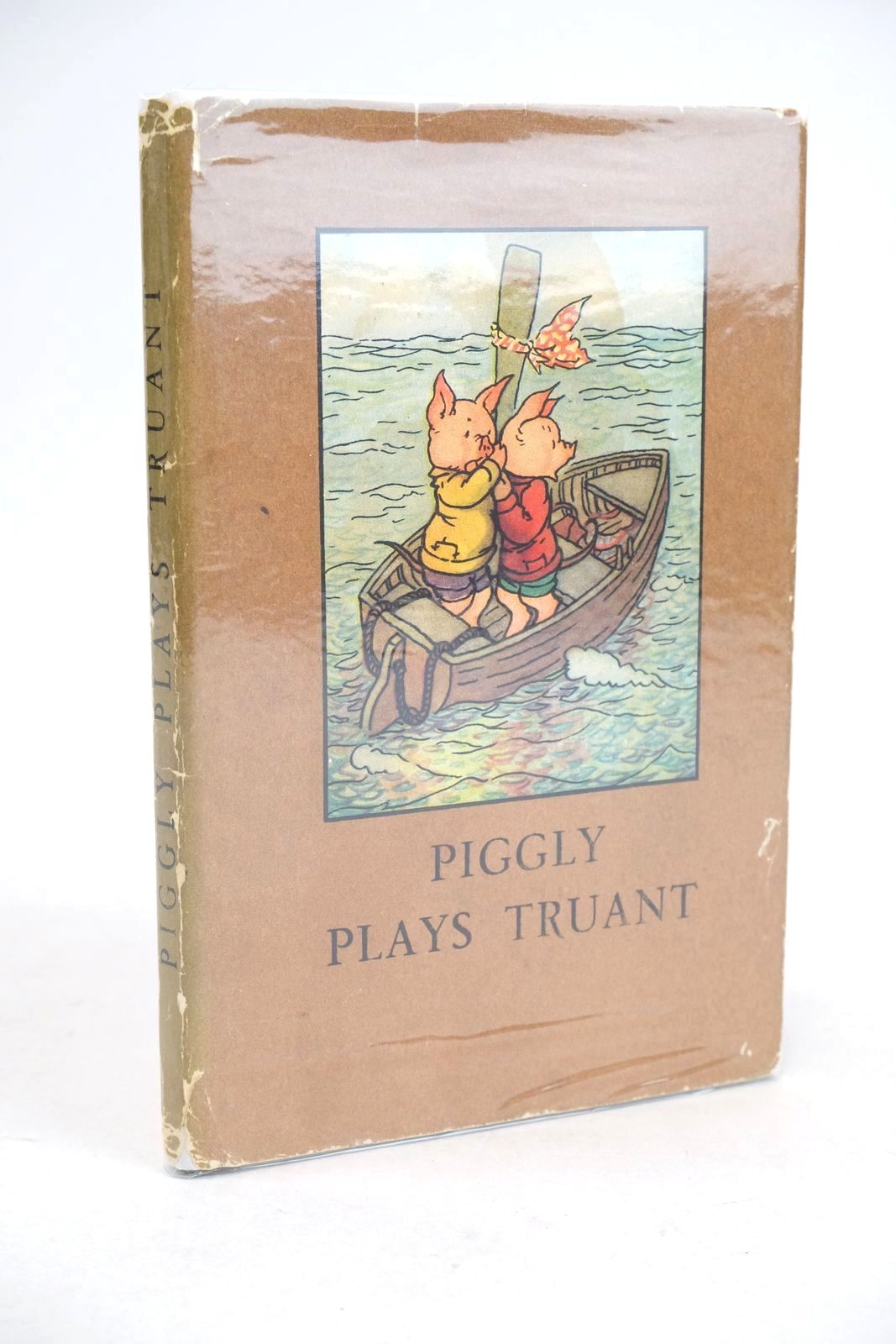
PIGGLY PLAYS TRUANT
Written by A.J. Macgregor; W. Perring.
Illustrated by A.J. Macgregor.
Stock no. 1325478
Published by Wills & Hepworth Ltd..
Circa
1949.
Very good condition in a very good dustwrapper.
Ladybird Series 401. Blue boards, dark blue titles to spine and front cover. Colour pictorial onlay to front cover. B/w sketch to endpapers. Colour illustrations. Spine and corners bumped, some slight browning to cover edges. Endpapers lightly browned. Prize inscription in ink to front fly-leaf (dated 1949). Contents clean. Price-cut wrapper is edge worn with fading to spine.
- Categorised in:
- CHILDRENS
- LADYBIRD
- LADYBIRD 401 RHYMING STORIES
- PIGS (CHILDRENS)
- ANIMAL STORY

THE WOLF AND THE SEVEN LITTLE KIDS
Written by Vera Southgate.
Illustrated by Robert Lumley.
Stock no. 1325329
Published by Wills & Hepworth Ltd..
1974.
Almost very good condition.
Ladybird series 606D. The original 'well-loved tales' classic! Red pictorial paper boards. Colour illustrations. ISBN: 0721402402. Spine and corners bumped and worn. Marks to rear cover. Last title listed on rear cover is The Princess and the Frog, Tally 360 and price 18p. Some light foxing to contents.
- Categorised in:
- CHILDRENS
- LADYBIRD
- LADYBIRD 606D WELL-LOVED TALES
- FAIRY TALES

FLIGHT FIVE: AFRICA
Written by David Scott Daniell.
Illustrated by Jack Matthew.
Stock no. 1324674
Published by Wills & Hepworth Ltd..
1st
1961.
Nearly fine condition in a slightly better than very good dustwrapper.
Ladybird series 587. Buff boards with colour vignette and titles. Colour illustrations. Spine slightly bumped else a fine copy. Wrapper is just a little edge rubbed to top edges.
- Categorised in:
- CHILDRENS
- LADYBIRD
- LADYBIRD 587 TRAVEL
- AFRICA

FLIGHT TWO: CANADA
Written by David Scott Daniell.
Illustrated by Jack Matthew.
Stock no. 1324673
Published by Wills & Hepworth Ltd..
1st
1959.
Fine condition in a slightly better than very good dustwrapper.
Ladybird Series 587. Buff boards with colour vignette and titles. Colour illustrations. A super copy in bright wrapper which is just a little rubbed at top edges and very faintly foxed.
- Categorised in:
- CHILDRENS
- LADYBIRD
- LADYBIRD 587 TRAVEL
- CANADA
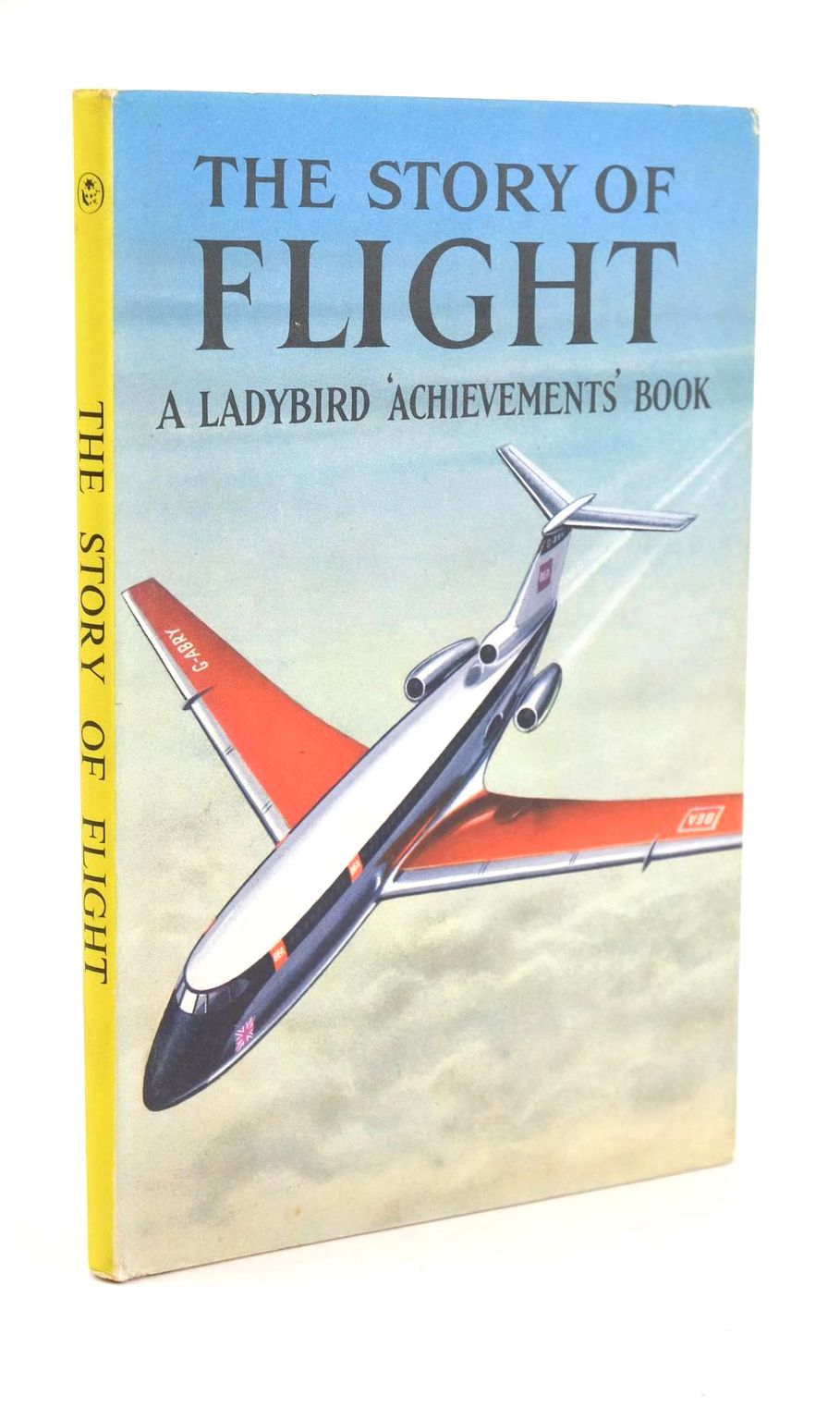
THE STORY OF FLIGHT
Written by Richard Bowood.
Illustrated by Robert Ayton.
Stock no. 1324671
Published by Wills & Hepworth Ltd..
Circa
1962.
Slightly better than very good condition in a very good dustwrapper.
Ladybird Series 601. Buff boards with colour vignette and titles. Colour illustrations. Minimal bumping to spine and corners. Contents fine. Dustwrapper is slightly rubbed at edges and a little scuffed to rear panel.
- Categorised in:
- CHILDRENS
- LADYBIRD
- LADYBIRD 601 ACHIEVEMENTS
- AIRCRAFT (CHILDRENS)

THE STORY OF THE MOTOR CAR
Written by David Carey.
Illustrated by Robert Ayton.
Stock no. 1324669
Published by Wills & Hepworth Ltd..
1st
1962.
Slightly better than very good condition in a slightly better than very good dustwrapper.
Ladybird Series 601. Buff boards with colour vignette and titles. Colour illustrations. Some light browning to cover edges. Contents fine. Dustwrapper is bright, just a little edge rubbed.
- Categorised in:
- CHILDRENS
- LADYBIRD
- LADYBIRD 601 ACHIEVEMENTS
- CARS (CHILDRENS)
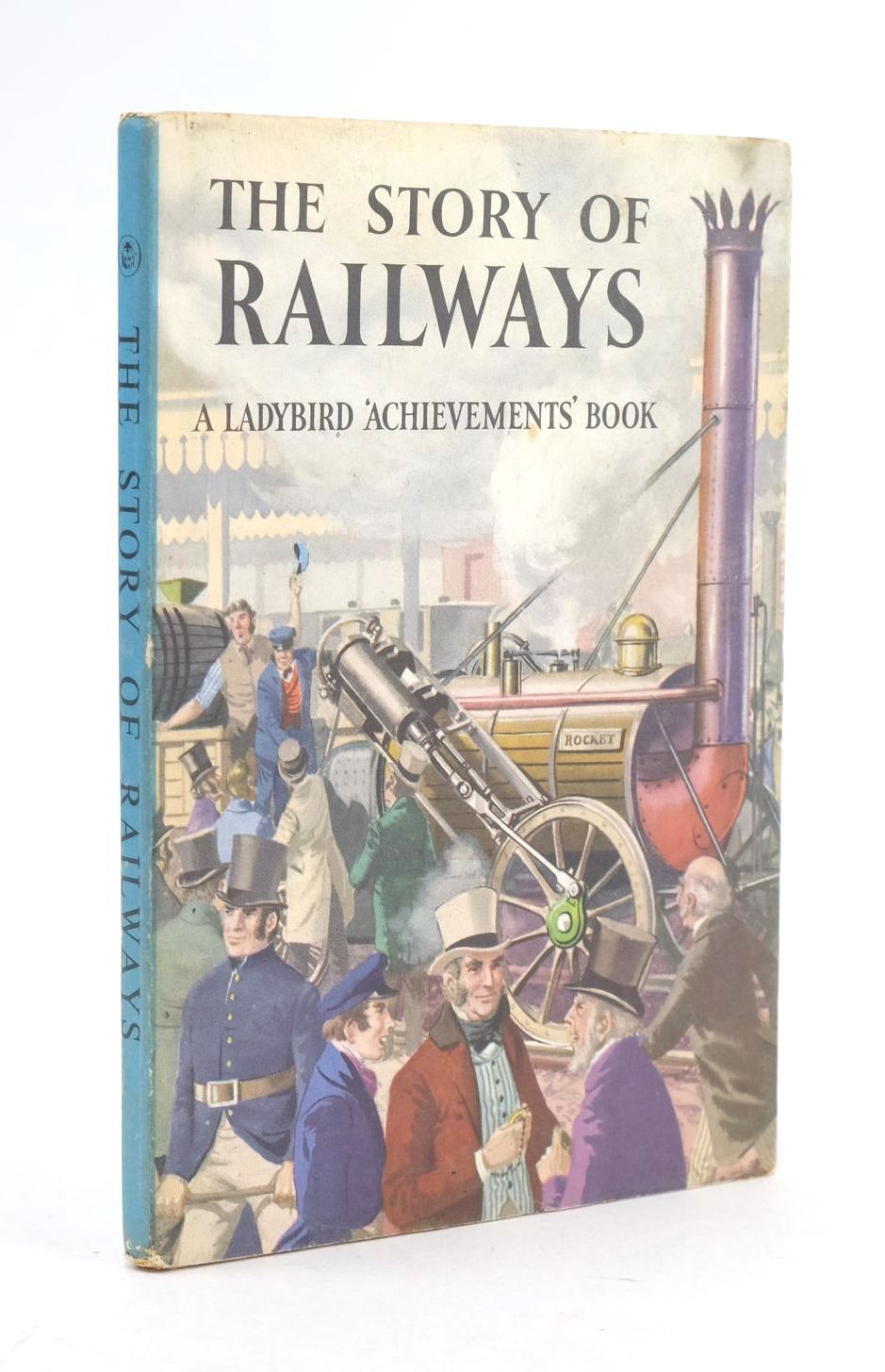
THE STORY OF RAILWAYS
Written by Richard Bowood.
Illustrated by Robert Ayton.
Stock no. 1324668
Published by Wills & Hepworth Ltd..
1st
1961.
Very good condition in a very good dustwrapper.
Ladybird Series 601. Illustrated buff boards. Colour illustrations. Spine slightly bumped. A couple of small marks to front cover. Light browning to front free-endpaper else contents fine. Dustwrapper is a little edge rubbed and slightly grubby.
- Categorised in:
- CHILDRENS
- LADYBIRD
- LADYBIRD 601 ACHIEVEMENTS
- TRAINS (CHILDRENS)
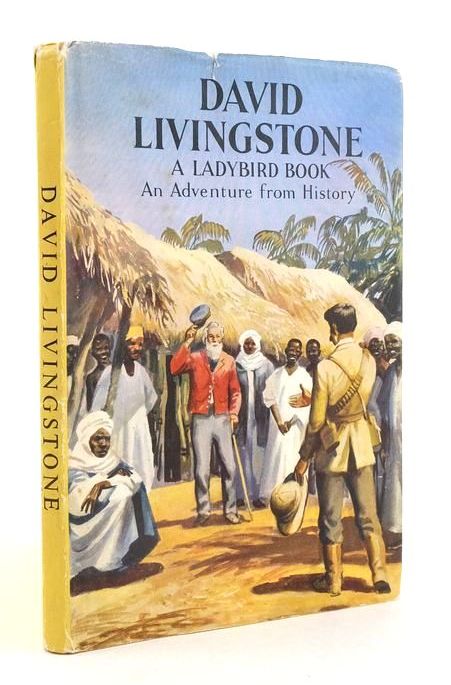
DAVID LIVINGSTONE
Written by L. Du Garde Peach.
Illustrated by John Kenney.
Stock no. 1824952
Published by Wills & Hepworth Ltd..
1st
1960.
Very good condition in a very good dustwrapper.
Ladybird Series 561. Buff boards with colour vignette and titles. Colour illustrations. Buff spine lightly browned. Mark to free front endpaper. Otherwise contents clean. A few marks to pictorial dustwrapper and light wear to top & tail of spine, small closed tear (no loss) to top front panel edge rear panel a little grubby. David Livingstone is the last title to rear flap.
- Categorised in:
- CHILDRENS
- LADYBIRD
- LADYBIRD 561 ADVENTURES FROM HISTORY
- BIOGRAPHY

TIME, CALENDARS AND CLOCKS
Written by Roy Worvill.
Illustrated by B.H. Robinson.
Stock no. 1324411
Published by Ladybird Books Ltd.
1st
1973.
Very good condition.
Ladybird Series 601. Blue pictorial paper boards. Colour illustrations. ISBN: 0721403360. Slight bumping and rubbing to spine and corners. Small, old tape marks to endpapers. Contents clean.
- Categorised in:
- CHILDRENS
- LADYBIRD
- LADYBIRD 601 ACHIEVEMENTS